Loading
Demo playbook · 8–12 min
Parts Exchange — buyer evaluation
8–12 minute Parts Exchange buyer demo: search listings, compare seller grades, request quote, attach to RO, receive GST invoice. Pilot marketplace — not national scale.
Role for this script
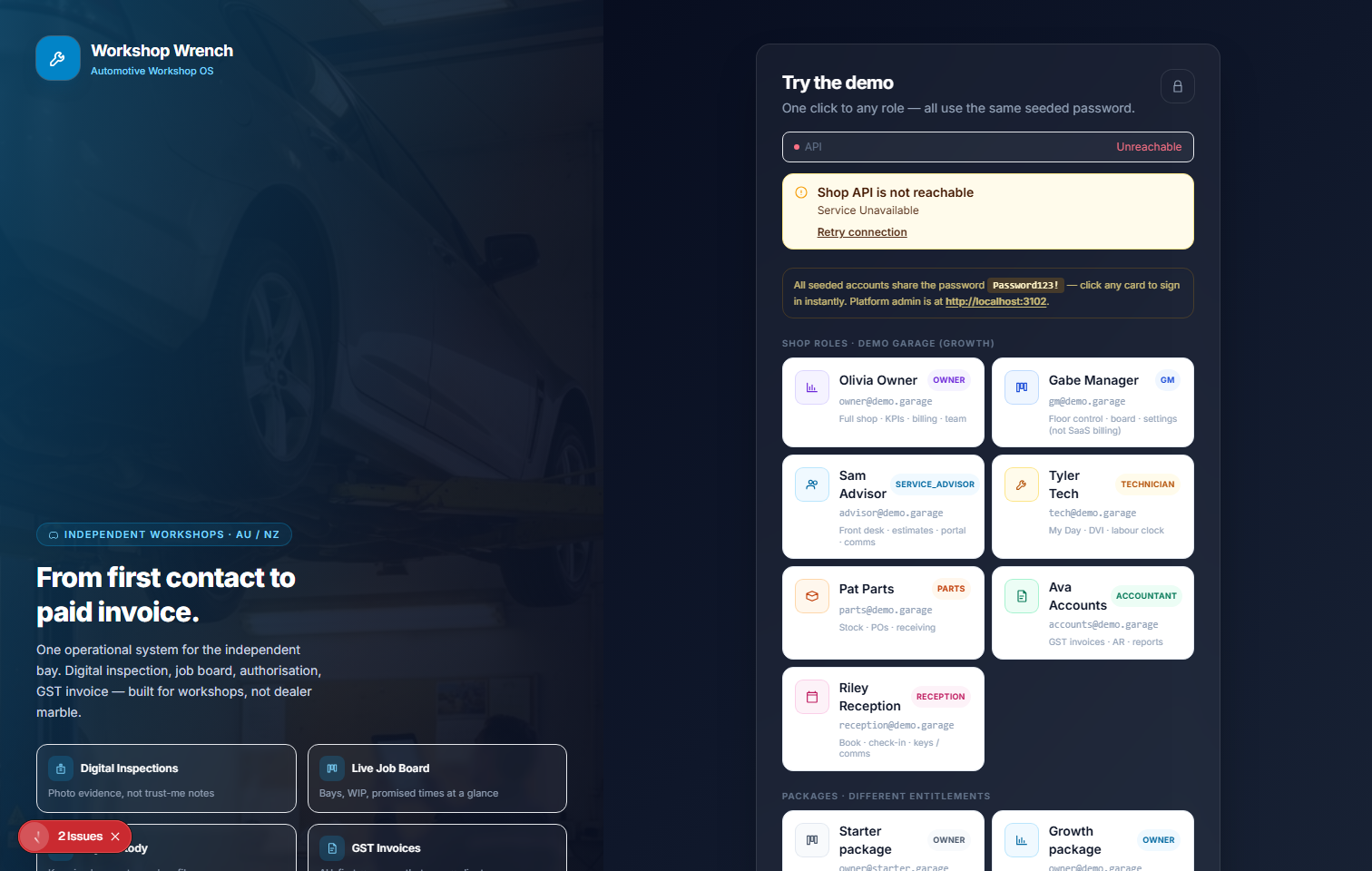
Password is issued on your live demo access desk after you request access (also emailed).
Parts Exchange is a local pilot. Listings reflect pilot sellers. Stripe Connect, AusPost, and ABR verification are Partial — not all features are live in every environment.
Request accesslive demo capture
Checklist
Step-by-step evaluation
Follow in order. Expected outcomes keep the demo honest.
Step 1 · /purchasing
Login as [email protected]. Navigate to Purchasing or Parts tab.
Expect: Parts Exchange tab visible
Step 2 · Parts Exchange
Click Parts Exchange. Enter a part search — try "alternator" or a brake part.
Expect: Listings appear with seller badges, condition grades (Used A/B/C), and prices
Step 3 · Listing detail
Click a listing. Review: seller ABR status, condition note, core charge, estimated turnaround.
Expect: Listing detail with seller profile
Step 4 · Parts Exchange
Click Request Quote (or Add to Cart on fixed-price). Note the RFQ confirmation.
Expect: Quote sent; seller notified; quote appears in Quotes tab
Step 5 · /quotes
Open Quotes tab. Find the pending quote. Accept or negotiate.
Expect: Quote accepted state; option to raise PO
Step 6 · RO detail
From accepted quote, click Attach to RO. Select an open repair order.
Expect: Part linked to RO; appears in parts list
Step 7 · RO / Invoices
Mark parts received. Note: GST tax invoice generates automatically from seller on receipt.
Expect: Part status moves to Received; GST invoice in AR
Honesty caveats
- Parts Exchange is a local pilot — seller count reflects pilot participants, not a national open marketplace.
- Stripe Connect AU is Partial — payment flows are tested in sandbox, not production.
- ABR verification is a specimen in the demo environment; live ABR lookup requires a paid provider key.
- AusPost freight integration is Stub — will-call collection is the current delivery model in pilot.